Stop losing work in chat. Start organizing it.
Stop losing work in chat. Start organizing it.
Join the teams who turned their conversations into their competitive advantage
Join the teams who turned their conversations into their competitive advantage
Join the teams who turned their conversations into their competitive advantage
Set up in 5 minutes. Cancel anytime.
Set up in 5 minutes. Cancel anytime.
Get Started Free - No Credit Card
Get Started Free - No Credit Card
Creating To-dos with Chat
Creating To-dos
with Chat
Start Your First Conversation
Everything in MAKi begins with a chat.
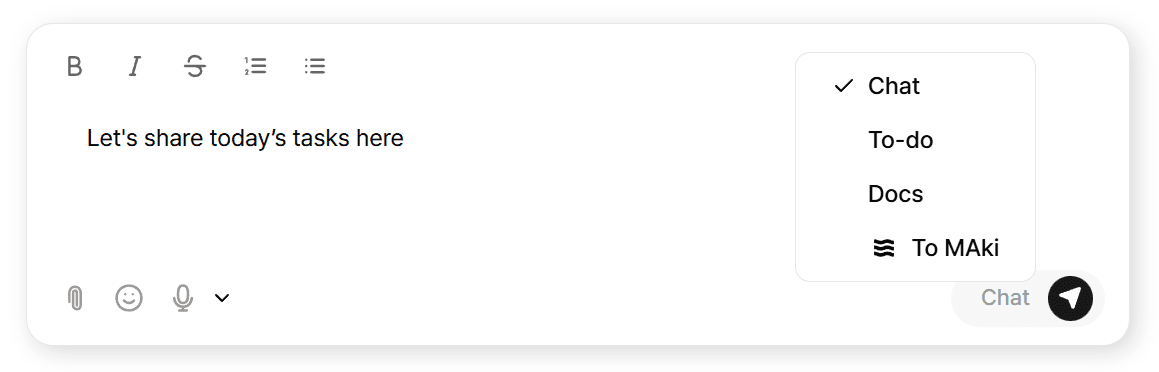
Send a message like:
“Let's share today’s tasks here.”
From this point, MAKi can:
Convert messages into tasks
Extract deadlines
Summarize conversations
Generate Docs
Track progress inside Flow
Just type → and MAKi turns it into action.
Start Your First Conversation
Everything in MAKi begins with a chat.
Send a message like:
“Let's share today’s tasks here.”
From this point, MAKi can:
Convert messages into tasks
Extract deadlines
Summarize conversations
Generate Docs
Track progress inside Flow
Just type → and MAKi turns it into action.
Turn Messages Into Tasks
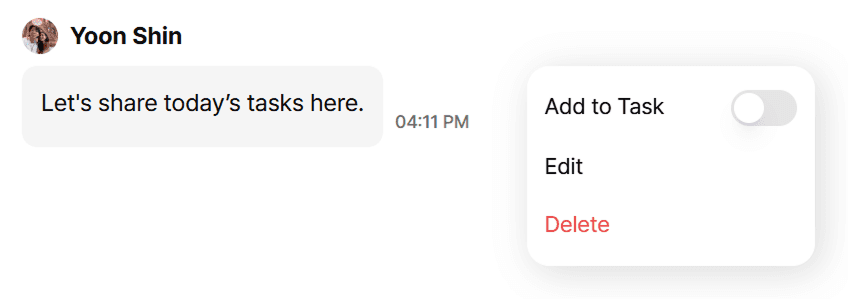
In MAKi, you can convert any chat message into a structured task with 1 click.
Hover over a message → Convert to To-do
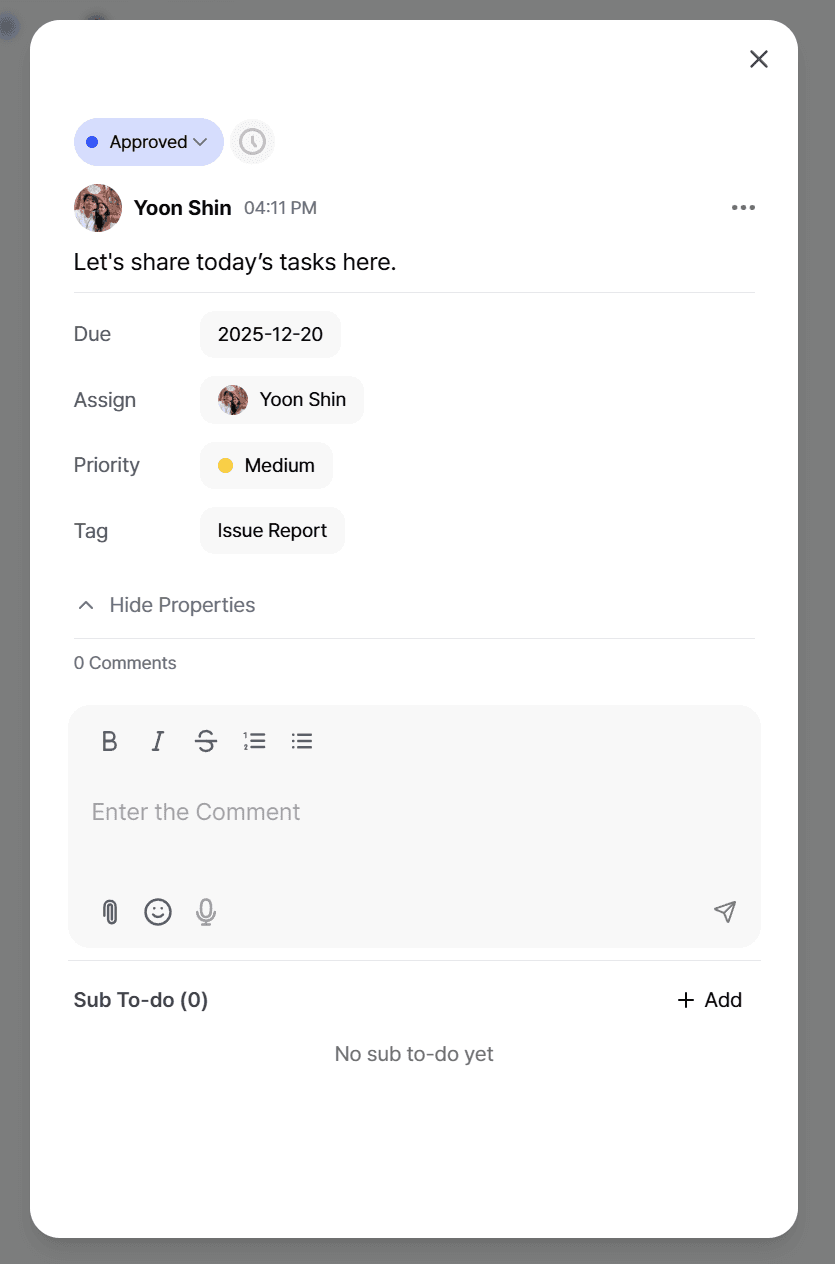
You can then:
Assign a member
Set a due date
Add priority
Tag
Link Docs
Attach files
Turn Messages Into Tasks
In MAKi, you can convert any chat message into a structured task with 1 click.
Hover over a message → Convert to To-do
You can then:
Assign a member
Set a due date
Add priority
Tag
Link Docs
Attach files
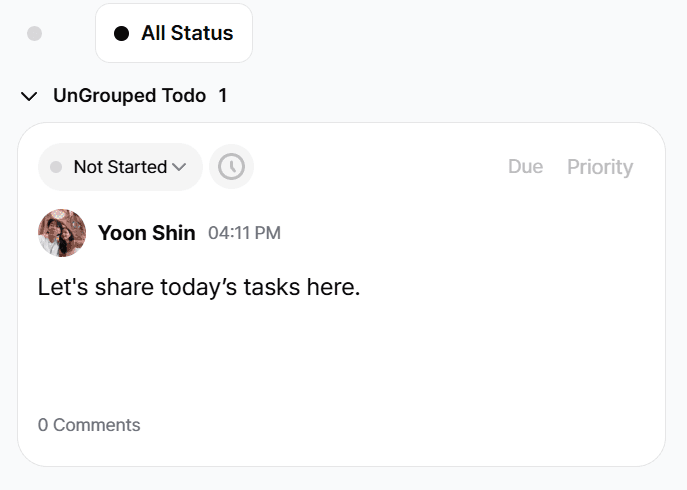
The task instantly appears in:
The To-do Board
List View
Calendar
Flow Dashboard
The task instantly appears in:
The To-do Board
List View
Calendar
Flow Dashboard
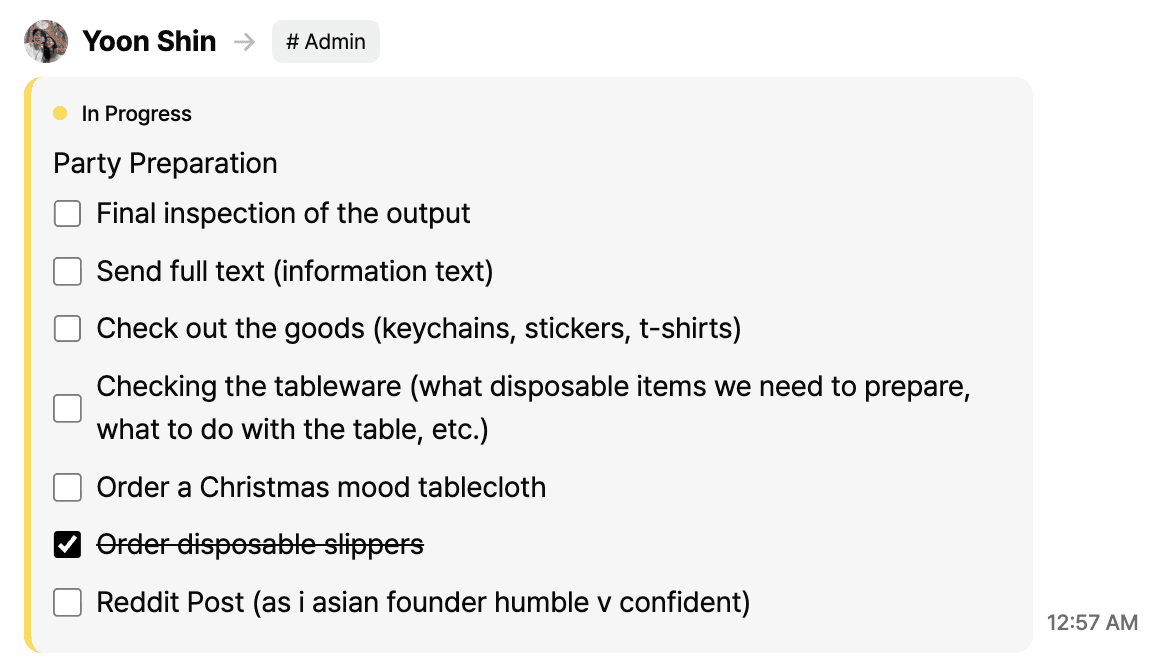
And you can create a checkbox by typing [ ] in the input field.
Check the below
And you can create a checkbox by typing [ ] in the input field.
Check the below
Stop losing work in chat. Start organizing it.
Join the teams who turned their conversations
into their competitive advantage
Set up in 5 minutes. Cancel anytime.
Get Started Free - No Credit Card